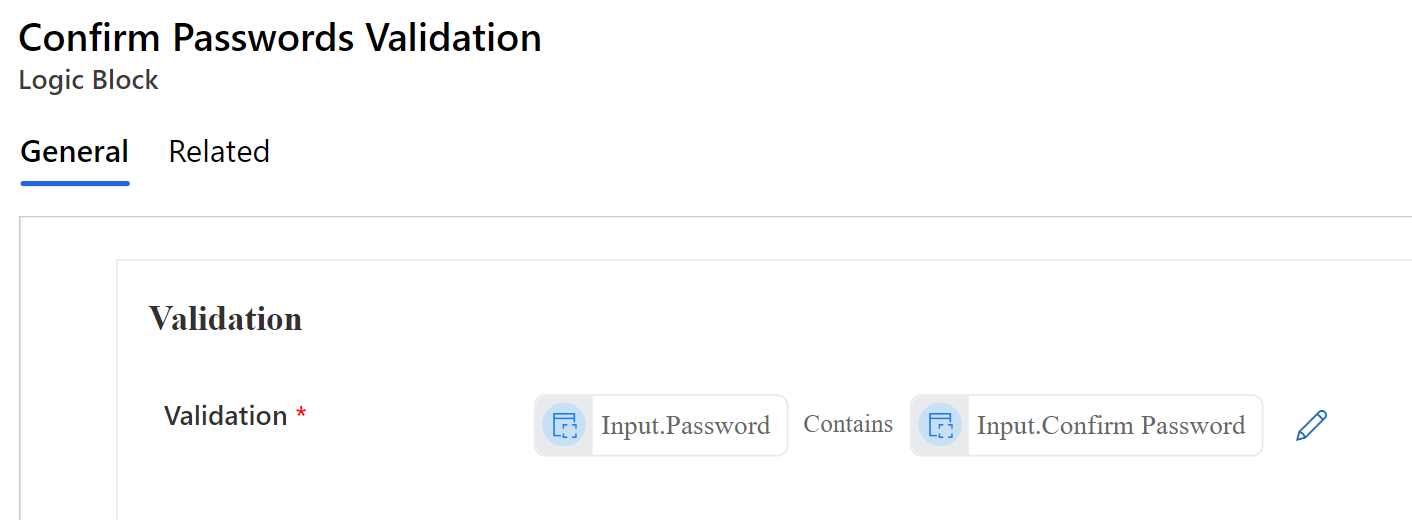
Confirm Password's Validation
Step 1: Setting the Properties for the Logic Block
When crafting a validation logic block, begin by entering the essential properties:
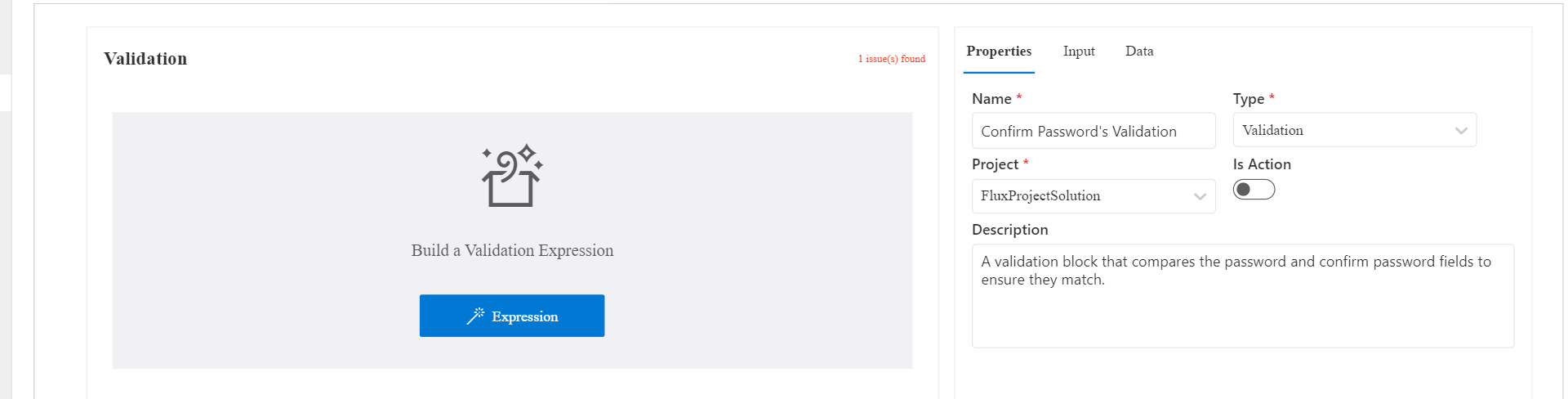
- Name: A distinct label that serves as the block's identifier.
- Project: Designate the project associated with this block.
- Type: Choose 'Validation' from the available logic block categories.
- Description: A concise yet informative summary detailing the block's precise function.
- Is Action: A boolean indicator determining if the block is designated as an action.
Note
When constructing a Validation block, specifying the return type is unnecessary since it invariably yields a boolean result (true or false).
Step 2: Adding the validation block required inputs
After setting up the validation block with its core properties, it's time to input the specific parameters upon which the block will base its final verdict:
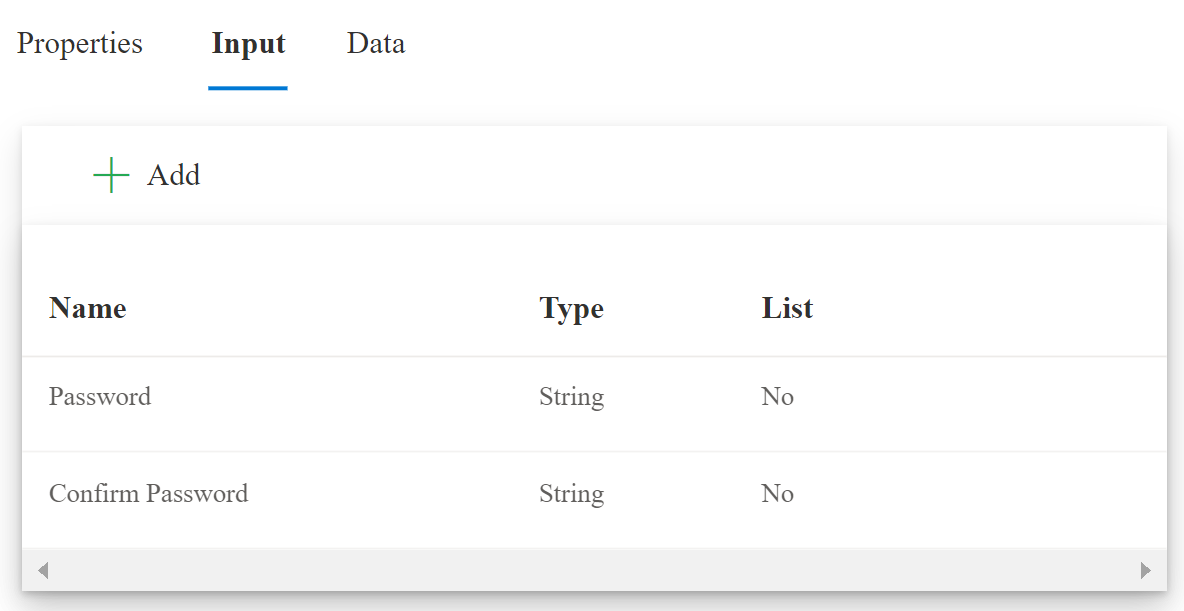
- Password: A string field capturing the user's password.
- Confirm Password: A corresponding string field to re-enter the password for verification.
Step 3: Building the passwords validation expression
With the requisite inputs in place, we'll craft an expression to verify the congruence of the passwords. To facilitate this, we'll utilize the built-in function:
- Contains: Determines if a string encompasses the specified segment, returning true if it does and false otherwise.